
How to Use Copilot in Excel: A Practical Guide for Business Users
TLDR
To use Copilot in Excel, open a workbook saved to OneDrive or SharePoint, format your data as a table, select the Copilot button and describe what you need in plain English. Copilot can write formulas, build charts and PivotTables, and summarize trends. Our one-day Microsoft 365 Copilot for Excel course ($395, 8 CPE hours) teaches the full workflow live.
Pro Tip
Name the table and the exact columns in every prompt, for example: “In the Sales table, add a column called Margin % that divides (Revenue minus Cost) by Revenue and format it as a percentage.” Then ask Copilot to explain the formula it wrote before you use the numbers in a report.
What Can Copilot Do In Excel For Business Users?

Copilot in Excel is Microsoft’s AI assistant built into the spreadsheet itself. Instead of searching for the right function or clicking through menus, you describe the result you want and Copilot proposes formulas, formatting, charts or a written summary of your data. For analysts, coordinators, managers and office staff who spend part of every week in spreadsheets, that means less time building and more time interpreting. It does not remove the need to understand your data, but it shortens the path from a question to a usable answer.
Everyday Tasks Copilot In Excel Handles
- Writing formulas and calculated columns from a plain-English description
- Explaining what an existing formula does, step by step
- Creating charts and PivotTables from a table of data
- Highlighting outliers, trends and top or bottom performers with conditional formatting
- Sorting, filtering and cleaning inconsistent entries
- Summarizing results in sentences you can paste into an email or report
- Carrying out multi-step changes, such as reshaping data or merging sheets, when editing is allowed
The biggest gains usually come in the middle of analysis work. Copilot is quick at the jobs that used to mean a search for “how do I” followed by trial and error, such as a SUMIFS across two conditions or a chart comparing this quarter with last. Final judgment on whether a number makes business sense still belongs to you.
Learning Copilot In Excel From Scratch?
Our one-day Microsoft 365 Copilot for Excel class covers data preparation, formula generation, charts and validation, with 8 CPE hours.
How To Get Copilot In Excel And Enable It
Copilot in Excel needs an eligible Microsoft 365 license. In most organizations that means a Microsoft 365 Copilot license assigned by your IT administrator on top of a business or enterprise Microsoft 365 plan. Microsoft 365 Personal, Family and Premium subscribers can use Copilot features through AI credits, but only the subscription owner has access. If you are unsure which applies to you, your IT team can confirm your license in a few minutes.
| Platform | Chat Mode | Plan Mode | Editing Mode |
|---|---|---|---|
| Excel for Windows | Yes | Yes | Yes |
| Excel for Mac | Yes | Yes | Yes |
| Excel for the web | Yes | Yes | Yes |
| Excel for iPad | Yes | Yes | Rolling out |
| Excel for iPhone and Android | Yes | No | No |
If The Copilot Button Is Missing Or Greyed Out
- Save the workbook to OneDrive or SharePoint and turn on AutoSave
- Sign in to Excel with the work account that holds your Copilot license
- Update Microsoft 365 to the latest version of Excel
- Close and reopen Excel after a license has just been assigned
- Ask IT whether Copilot has been enabled for your organization
Copilot also works best on well-organized data. A single header row, one type of information per column and no merged cells give it a clear picture of what each column means. Formatting the range as an Excel table with Ctrl+T is the quickest way to get there.
How To Use Copilot In Excel Step By Step

This is the workflow our instructors teach for a first real task, such as summarizing monthly sales by region. It takes about ten minutes the first time and a couple of minutes once it becomes habit. The review step at the end is the one people skip, and it is the one that protects your reputation when the report goes to leadership.
Step 1: Prepare Your Data
Remove blank rows and merged cells, give every column a clear header such as Region, Month and Revenue, and press Ctrl+T to format the range as a table. Rename the table on the Table Design tab so you can refer to it by name.
Step 2: Open The Copilot Pane
Select the Copilot icon in Excel to open the pane beside your worksheet. Choose chat, plan or editing mode depending on whether you want answers, a proposed plan or direct changes.
Step 3: Write A Specific Prompt
State the goal, the data to use and the output you expect: “Using the Sales table, show total Revenue by Region for Q3 as a PivotTable on a new sheet, sorted highest to lowest.”
Step 4: Refine With Follow-Up Questions
If the first result is close but not right, build on it: “Add a column showing each region’s share of the total” or “Chart the top five regions as a bar chart.” Starting broad and refining usually beats one long prompt.
Step 5: Review Before You Rely On It
Click into any formula Copilot created, check the ranges and spot-check two or three results by hand. If a change is wrong, undo it or restore an earlier copy from version history.
Copilot Prompts For Excel: Examples For Business Tasks
Good prompts name the table, the columns and the format of the answer. The examples in the table come from the scenarios participants bring to our classes. Replace the table and column names with your own, and keep the “what to check” column in mind every time.
| Business Task | Example Prompt | What To Check |
|---|---|---|
| Budget variance | “In the Budget table, add a Variance column (Actual minus Budget) and a Variance % column, and highlight anything over 10% in red.” | Sign of the variance and the percentage base |
| Sales trends | “Which three products grew fastest between Q1 and Q3 in the Sales table? Show the numbers.” | That the quarters and product totals match your source |
| Lookup formulas | “Add a Manager column to the Staff table that looks up each Department in the Managers table.” | Exact match, and rows that return no result |
| Data cleanup | “Standardize the State column to two-letter abbreviations and flag any rows with a missing Email.” | Unusual entries that were changed incorrectly |
| Charts | “Create a line chart of monthly Revenue and Expenses from the Finance table for the last 12 months.” | Axis labels, date order and chart title |
| Management summary | “Summarize the key changes in this workbook for my director in five bullet points with numbers.” | Every figure in the summary against the sheet |
| Formula help | “Explain how the formula in F12 works and why it returns an error in row 40.” | That the explanation matches the actual cell references |
Prompts that include the audience and the format tend to produce more usable output. Asking for “five bullet points for my director” gets a very different result from “summarize this,” and it saves an editing round. Our Excel formulas and PivotTables course pairs this kind of prompting with the underlying Excel skills, so you can tell when a suggested formula is right.
From Our Community
“The classes were hands-on, and the instructor adapted the material to match our skill levels. We left with practical knowledge that improved our productivity immediately. … I’ll definitely be back for more courses.”
Isabella R. · Excel and Power BI Team Training
View Copilot for ExcelWhere Is Copilot In Excel And Which Mode Should You Use?

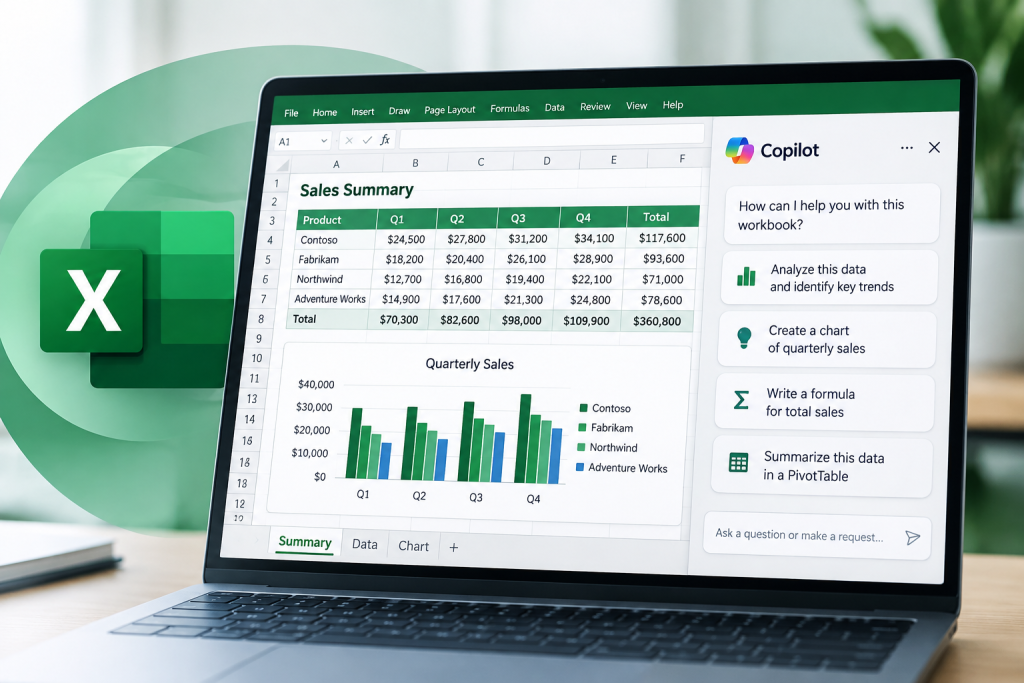
You open Copilot from the Copilot icon in Excel, which brings up the Copilot pane beside your worksheet. From there, Copilot in Excel works in three modes, and picking the right one prevents surprises in shared workbooks. Chat mode answers questions about your data without touching the file. Plan mode lays out the steps it intends to take so you can approve them first. Editing mode carries out multi-step changes directly, such as reshaping data, merging sheets or building a report with several elements.
Which Copilot Mode To Use
- Chat mode: exploring a new dataset, asking what changed, getting a written summary
- Plan mode: larger jobs on important workbooks, when you want to approve each step
- Editing mode: working on your own copy, where fast direct changes save the most time
- Any mode on a shared file: make a copy first or confirm version history is available
A sensible habit for finance and operations teams is to start in chat mode, move to plan mode once you know what you want, and use editing mode on a working copy. You can also switch the AI model with the model picker, though the default Auto setting suits most business tasks. Previous Copilot conversations stay available from the pane’s menu, which makes it easy to repeat a monthly analysis without rewriting the prompts.
Copilot In Excel Accuracy: How To Check Results
Copilot can misread a column, pick the wrong range or describe a trend the numbers do not support. Those mistakes look convincing because the output is well formatted. Treat every result as a draft from a capable new colleague: useful, fast and in need of review before it reaches a client, a board pack or an audit file.
Responsible Use Checklist
- Open every generated formula and confirm the ranges cover all rows
- Recalculate two or three results by hand or with a simple SUM
- Ask Copilot “what assumptions did you make?” for any summary or forecast
- Follow your organization’s policy on confidential, personal or client data
- Keep a note of AI-assisted changes in workbooks that are reviewed or audited
- Use version history to restore the file if an edit goes wrong
One change matters if you picked up tips from older tutorials. Microsoft retired the =COPILOT worksheet function on September 14, 2026, and workbooks that used it now show #NAME? when those cells recalculate. The Copilot pane supports the same kinds of tasks, including summarizing text and classifying data, so rebuild those steps in the pane. Teams that prepare data before prompting get better results, and our half-day Power Query and AI Tools class covers that preparation step in 4 CPE hours.
Microsoft Copilot Training For Excel And Microsoft 365

Most people learn the Copilot button in an afternoon and then plateau, because the real skill is knowing what to ask and how to check the answer. Live, instructor-led practice on realistic business data closes that gap quickly. We teach Copilot app by app, so teams can start where they spend the most time. The full series sits in our Artificial Intelligence Training courses.
| Microsoft 365 App | KSI Course | Length, Credit And Fee |
|---|---|---|
| Excel | Microsoft 365 Copilot for Excel | 1 day, 8 CPE hours, $395 |
| Word and Outlook | Microsoft 365 Copilot for Word & Outlook | 1 day, 8 CPE hours, $395 |
| Teams | Microsoft 365 Copilot for Teams | 1 day, 8 CPE hours, $395 |
| PowerPoint | Microsoft 365 Copilot for PowerPoint | 1 day, 8 CPE hours, $395 |
| SharePoint and OneDrive | Microsoft 365 Copilot for SharePoint & OneDrive | 1 day, 8 CPE hours, $395 |
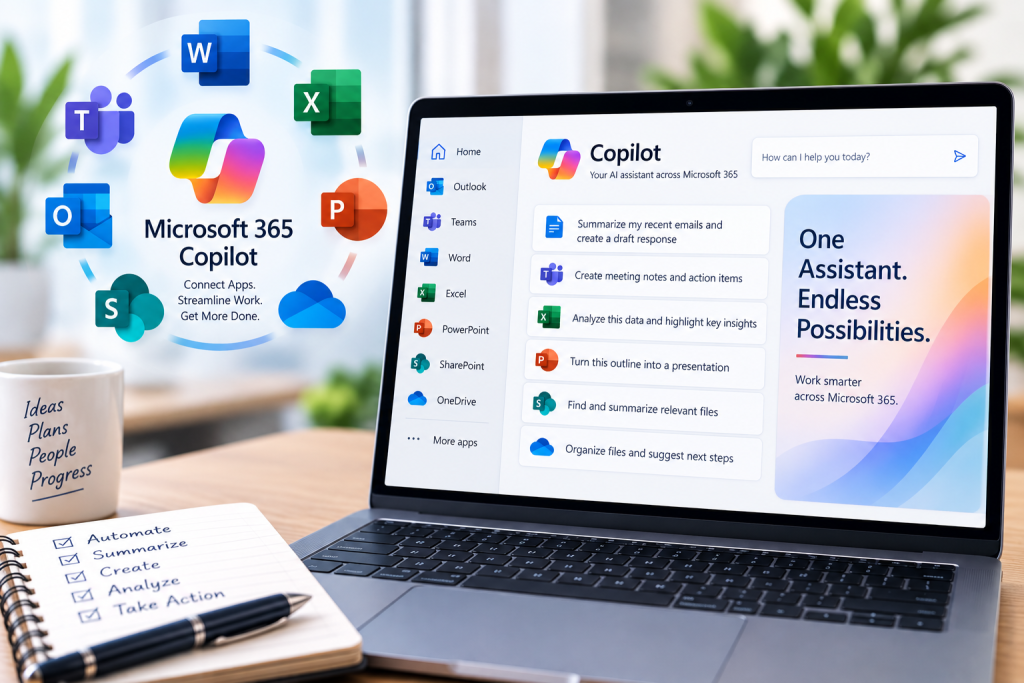
| All apps together | Microsoft 365 Copilot for Business Productivity & Cross-App Workflows | 1 day, 8 CPE hours, $445 |
Teams that already use ChatGPT alongside Excel can compare approaches in our half-day Using ChatGPT for Data Analysis class. Accounting and finance professionals can earn CPE hours on these courses, and state boards of accountancy decide which courses they accept. Every class is live and instructor-led, with time to work on examples close to your own reports.
Accredited Training Since 1993
Knowledge Source Inc. is registered with the National Association of State Boards of Accountancy (NASBA) as a sponsor of continuing professional education on the National Registry of CPE Sponsors. State boards of accountancy have final authority on the acceptance of individual courses for CPE credit. Complaints regarding registered sponsors may be submitted to the National Registry of CPE Sponsors through its website: www.nasbaregistry.org.
Live virtual CPE classes include at least three engagement prompts per CPE hour (50 minutes). Participants must respond to all three to receive credit for that hour.
Related Courses From Knowledge Source Inc.

Rolling Out Copilot Across Your Team?
We deliver Microsoft 365 Copilot for Excel and the full Copilot series as private live virtual or on-site classes, tailored to your team’s data, workflows and skill levels. Each one-day course carries 8 CPE hours. Tell us how many people need training and we will plan dates around your rollout.